What is Shopify?
Shopify is a leading e-commerce platform that enables you to sell custom products worldwide. You can build an online store with highly customisable design elements, product pages and checkout experience, allowing you to personalise a website with a broad reach. Shopify Store subscriptions are available to all markets in a variety of subscription tiers.
As a popular platform for selling a variety of on-demand products globally, Mixam paired with Shopify to offer publishers a fulfilment app that extends the sales reach of Mixam POD products.
To add the Mixam App to your Shopify store
- Log in to your Shopify Store
- Click ‘Settings’ (bottom left of page)
- Click ‘Apps’
- Shopify app Store
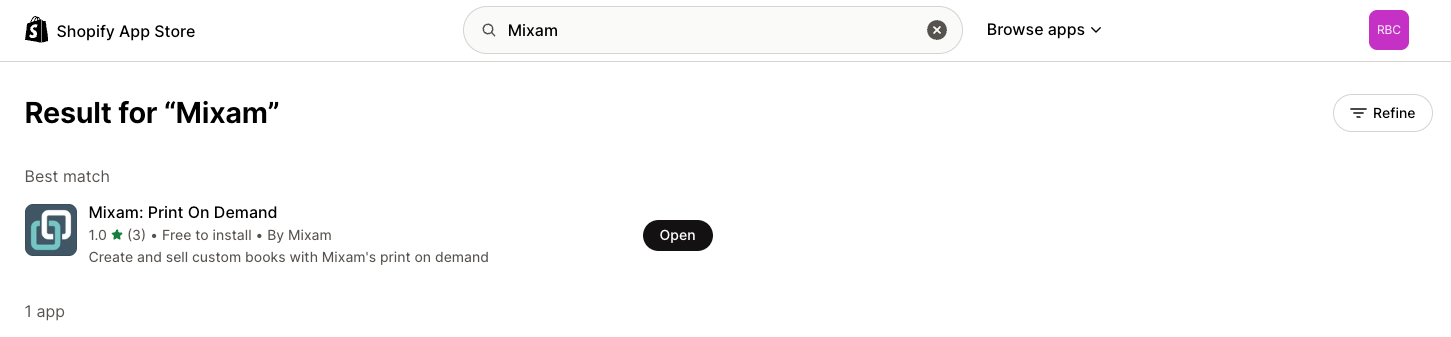
- Search ‘Mixam: Print On Demand’ and select it from the search results
- Click ‘Install’
Why use Shopify?
Shopify offers a multitude of free and paid Apps to elevate your publishing journey and customer experience. From marketing support to extensive sales channels, the opportunity to reach global audiences and get your products discoverable is heightened, particularly for those who are looking for an easy website setup without coding or development support.
Why use Mixam over other fulfilment Apps? It’s free! Mixam does not charge subscription or transaction fees for our POD services, unlike other fulfilment Apps.
|
|
|
How does the integration work?
The integration works by relaying webhooks containing product, address and status information via API connection, prompting actions on either side. The process looks like this:
- Publisher adds a Mixam POD product to their Shopify store
- Customer purchases from the Shopify store using the Shopify checkout
- A Shopify order is created
- Shopify sends a fulfilment request to Mixam
- Mixam accepts the request and creates an order
- Mixam automatically charges the publisher
- The order moves into production and is printed and shipped to the customer
- The customer receives their product
- Shopify payout the publisher their commission

Shopify Store awareness
Shopify is a highly customisable website solution with a vast number of choices for how products are presented, priced, distributed and paid for. Store owners have extensive settings to customise their customer experience and seller administration, such as methods of taking payments, sales channels, customer communication and commission payout schedules.
Please note: when integrating with Mixam, we only influence the presentation, pricing and fulfilment of Mixam POD products and are not linked to any other fulfilment provider that can be found in the Shopify App store.
Selling Via Shopify
Customers can buy multiple items from a Shopify store and multi-item orders can be split between different fulfilment providers. If more than one different Mixam POD product is purchased by your customer, we will group items for production where possible so only one shipping fee is required. For orders with different products, each item may have a separate charge. Our regional shipping services offer one fast and subsidised rate per region, and this price is subject to change.
Connecting Your Shopify Store
Prerequisites for Shopify Integration - Checklist
- Register as a Publisher with Mixam
- Link a chargeable card in your Publisher Hub and set a default billing address in My Account
- Create a POD product, enable and confirm it
- Wait for the publication to be approved by Mixam Staff
- Create a Shopify Store, set up billing and payout methods
- Install the Mixam Print On Demand fulfilment App
Connecting your Shopify Store to Mixam
- Go to your Publisher Hub
- Click the ‘Integrations’ tab
- Click the’ Shopify’ tab
- Paste your Shopify Store URL into the text box and click Connect a Store. You will be redirected to your Shopify Account where you will be prompted to log in to your Mixam Account via the Mixam Print-On-Demand App.
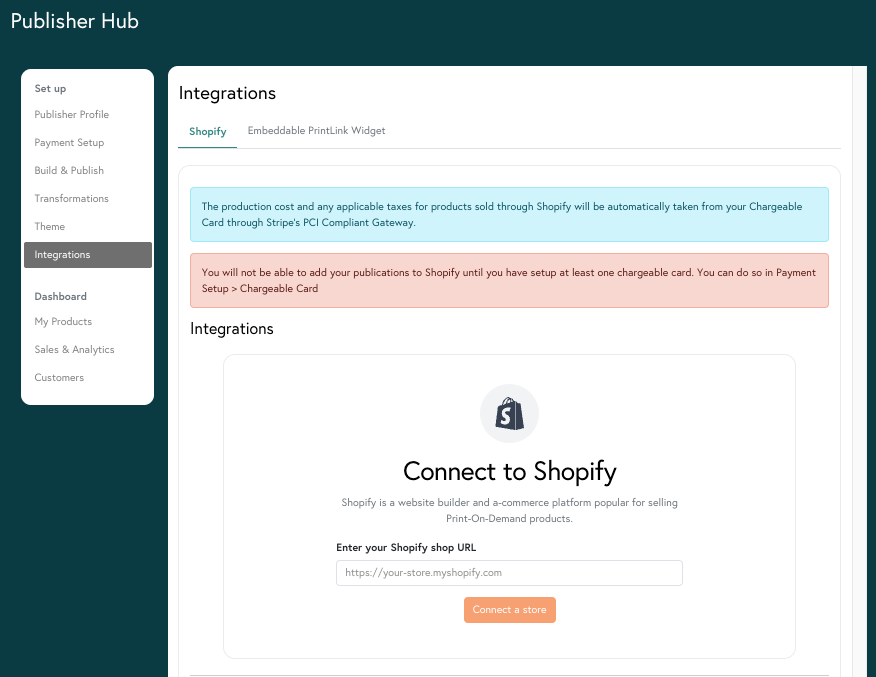
To connect additional stores, click Connect another store in the Integrations > Shopify tab in your Publisher Hub. Store connections are unlimited and can support different products.
Alternatively, you can install the Mixam: Print On Demand app for free on Shopify’s App Store and follow the above process from within the App.
What happens to orders when you uninstall Mixam:
- Automated updates to the status of orders already accepted and in progress will stop.
- Integrated products will be removed, preventing new sales, and the links to your product pages will no longer work. The safest option is to disable all Mixam products for new orders first, then wait until all orders in progress are fulfilled before removing the app.
Setting Up a Chargeable Card
A chargeable card, also known as a ‘card on file’ is required to take automatic payment from you, the publisher, for each Shopify order Mixam receives. You can link any debit or credit card registered in any region. The timing of charges depends on your Shopify store's fulfilment settings.
- For manual fulfilment requests: you can anticipate one or multiple card charges taking place upon your request action. I.e manually releasing 10 orders will see a card charge for 10 orders within the hour.
- For automatic fulfilment requests: Mixam will charge your card each time a fulfilment request is made, this could be sporadic and is entirely dependent on the volume and frequency of your sales. I.e you could have no charges on Monday, 5 charges within one hour on Wednesday and 100 charges spread throughout the day on Saturday.
How to add a chargeable card
- Go to your Publisher Hub
- Click the ‘Payment Setup’ tab
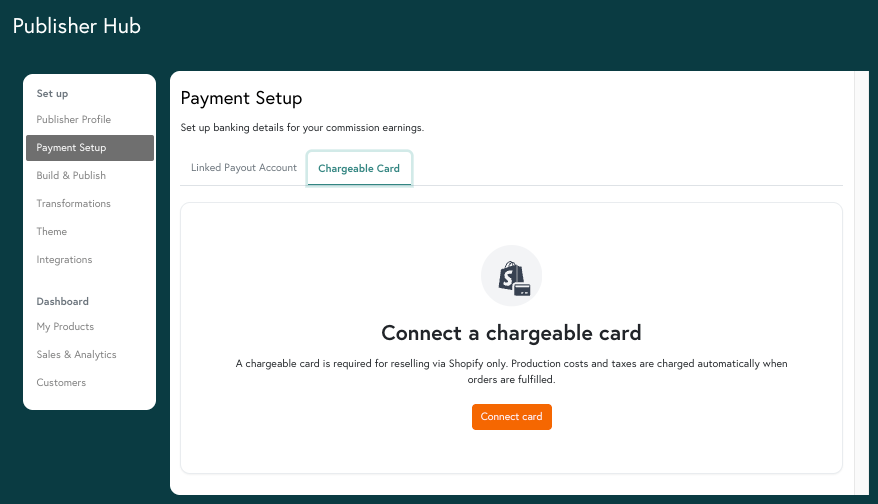
- Click the ‘Chargeable Card’ tab
- Click the ‘Connect card’ button to add a default card
- Follow the on-screen instructions from Stripe.
You can add as many cards as you like, these will be listed as ‘saved cards’ from which you can change the default at any time.
What Mixam charges you as a reseller vs what your customer pays
| Charge to |
Publisher |
Customer |
| Charged from |
Mixam |
Shopify |
| Production cost |
✅ |
✅ |
| Commission set in Mixam product details |
❌ |
✅ |
| Shipping cost |
✅ |
✅ |
| Additional charges added in Shopify listing details |
❌ |
✅ |
| Reductions due to coupons/promos/free delivery offered in Shopify listing details |
❌ |
✅ |
| Tax (when applicable) |
✅ |
❌ |
| Shopify transaction fee |
✅ |
❌ |
| Shopify platform subscription fee |
✅ |
❌ |
Adding, Deleting and Editing Integrated Shopify Products
You must set up a chargeable card and have a registered billing address saved to your Mixam Account profile before adding products to your store. Products must be set to active and both confirmed and approved for you to add them to your store integration.
How to add products to a store integration
Start in either: your Shopify Store > Mixam: Print-On-Demand App, or Publisher Hub > Integrations > Shopify when logged into Mixam.
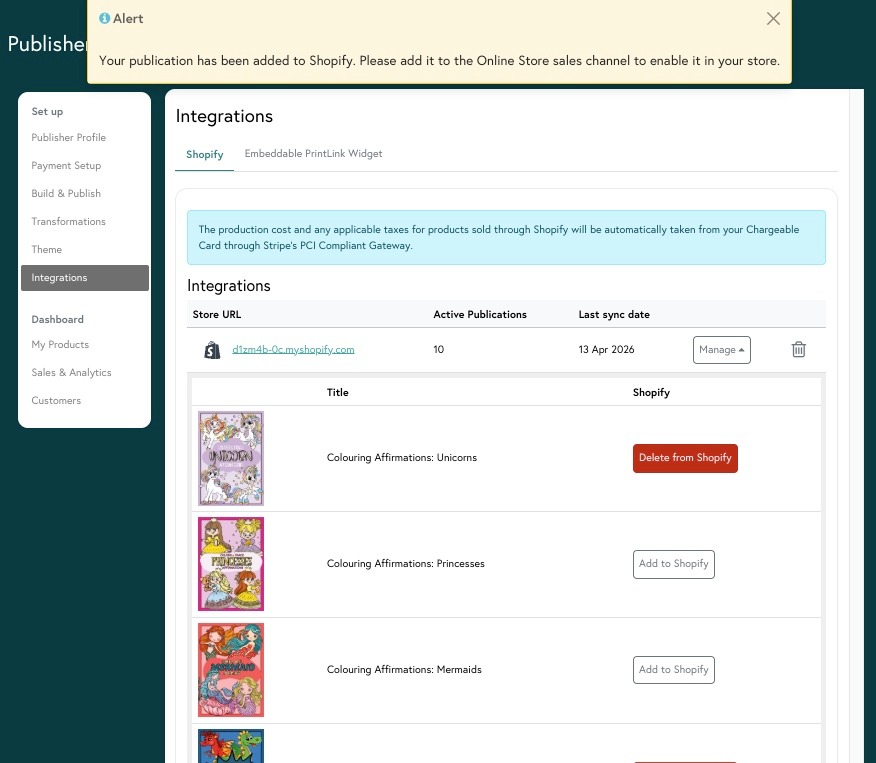
- Click ‘Manage’ in the integrations table for the store integration you wish to add or remove products from.
- Find the product you wish to add from the product table.
- Click ‘Add to Shopify’. A confirmation message will appear stating that your product has been added to your Shopify store.
- Ensure your product is set to Active in your Shopify store and is enabled for your desired sales channels
Note - only products that are active and have been confirmed by you and approved by Mixam can be added to your Shopify Store.
What information pulls through to Shopify?
- Product Title
- Product Description
- Buyer Price (production cost + commission + shipping fee excluding any applicable state tax)
- Thumbnail Artwork
- Mixam’s preset shipping profiles
Any changes you make to the product title, description or pricing in your Shopify store will not be reflected in your Mixam product details.
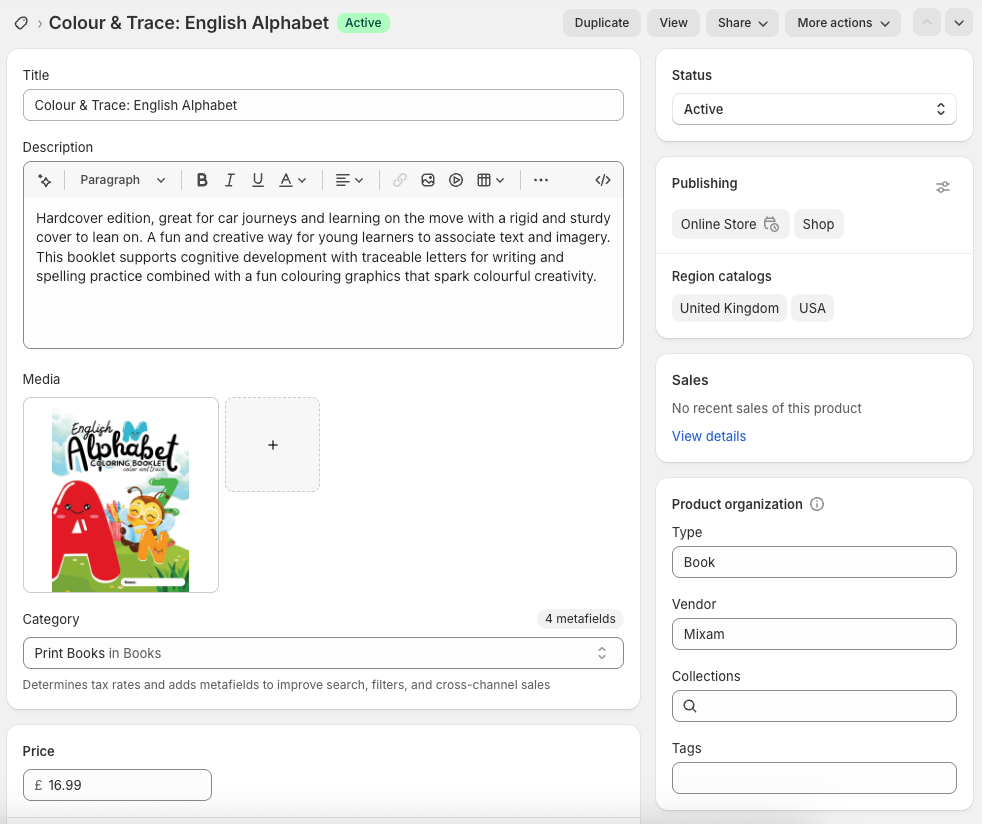
Start in either: your Shopify Store > Mixam: Print-On-Demand App, or Publisher Hub > Integrations > Shopify when logged into Mixam.
- Click ‘Manage’ in the integrations table for the store integration you wish to add or remove products from.
- Find the product you wish to remove from the product table.
- Click ‘Delete from Shopify’.
- A pop-up will ask for final confirmation you wish to remove the product from your store.
Once a product has been deleted
- Customers cannot order or view the product
- The listing will be removed from your ‘Products’ tab in your Shopify dashboard
- Existing orders will continue if fulfilment has already been requested and Mixam has received the order. However, there may be interruptions to tracking updates.
Editing an integrated product
Edits you make to your POD product in your Mixam account will be reflected in your Shopify store. This automated process synchronises product details, including descriptions, images, and pricing. If you choose to manually override the auto-populated product details from Mixam in your Shopify Store, your updates will be reflected on your Shopify product page, but will not be passed back to Mixam.
To edit your POD product, see Section 5E. Once you’ve edited, reconfirmed, and reapproved your product, your product listing details and artwork content will instantly update on Shopify. You don’t need to remove and re-add the product. The front cover thumbnail will remain unchanged.
Interactive Preview Integration
How to Add Mixam’s Interactive Preview to your Shopify Product Pages
The interactive preview block allows you to place a 3D preview of your book wherever you like on your Shopify product page.
- Log in to your Shopify Store
- Select ‘Products’ from the left-hand navigation panel
- Select the Mixam-supported product you wish to add the preview to
- Locate the section ‘Theme template’ on the right-hand side of the product page
- Select the eye icon, ‘View template’. A new product page configuration window will open.
- Choose any page area that offers ‘Add block’, typically the preview would be housed in the product information section.
- Click ‘Add block’ > Apps > Mixam Interactive Preview
- Click ‘Save’ on the top right of the screen
Testing the preview on your Shopify product page
How to view the interactive preview on a live page
- Log into your Shopify Store
- Select ‘Products’ from the left-hand navigation panel
- Select the Mixam product you added the interactive preview to
- Click 'Preview'
- Check the positioning and number of pages you wish to display is as expected
How to remove the interactive preview on a live page
- Log into your Shopify Store
- Select ‘Products’ from the left-hand navigation panel
- Select the MIxam product you added the interactive preview to
- Locate the section ‘Theme template’ on the right-hand side of the product page
- Select the eye icon, ‘View template’. A new product page configuration window will open.
- Locate the Mixam Interactive Preview App from the webpage section you added it to.
- Click the delete (bin) button
Manual vs Automatic Fulfilment
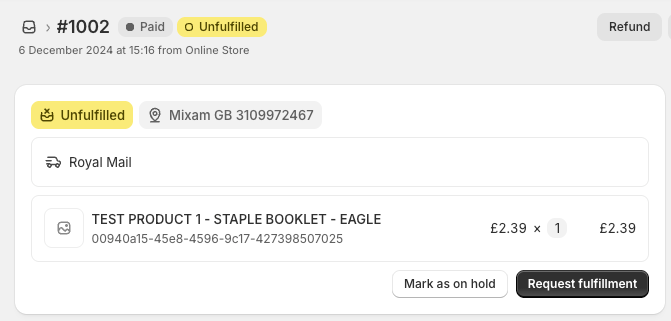
When a customer places an order, Shopify sends a fulfilment request to Mixam. You can choose how this request is sent based on how involved you wish to be in the order processing. By default, your Shopify store will be set to manual fulfilment.
To manually fulfil order to Mixam:
- Log into your Shopify store
- Click the ‘Orders’ tab
- Identify Mixam-supported orders with fulfilment status ‘unfulfilled’
- Select them using the check box on the left-hand side of the table
- Click the 3 dots on the top navigation bar to expand a selection menu
- Click ‘request fulfilment’
- Click ‘request fulfilment’ on the pop-up
Alternatively, click on the order from your orders list and select ‘Request fulfilment’ once the order detail opens.
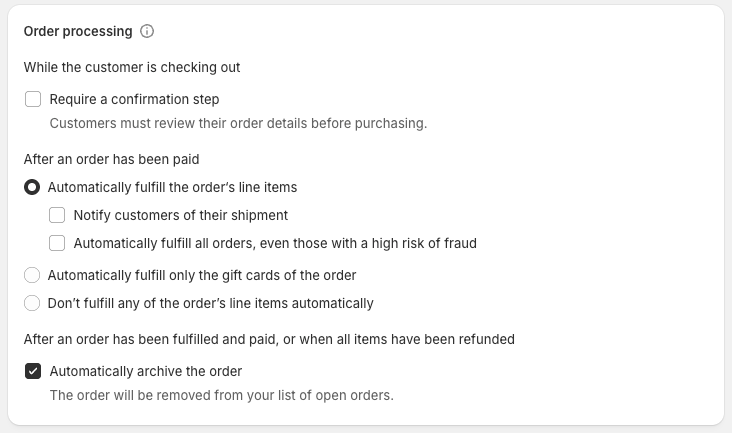
To enable auto-fulfilment (recommended):
- Log into your Shopify store
- Click ‘Settings’ (bottom left of page)
- Click the 'General' tab
- Locate the 'Order Processing' section
- In the section 'After an order has been paid', toggle the option to 'Automatically fulfil the order's line items'.
Please note this setting applies storewide and may affect products produced by other fulfilment partners.
| Feature | Manual Fulfilment | Automatic Fulfilment |
| Flexibility | Ideal if you want to review orders before they are processed or release orders in ‘batches’. | Best for a hands-off approach with no requirement to take action in your Shopify store. |
| Impact on fulfilment partners | No effect on other fulfilment partners. | Applies to all products in your store and may impact orders fulfilled by other partners. |
| Turnaround | You are responsible for releasing the order to fulfilment, which affects production and shipping speed. This method may slow processing and require monitoring. | The fastest way for Mixam to receive your orders and start production |
| Impact on publisher charges | Charges to you from Mixam are predictable. | Charges to you from Mixam are sporadic and reflect your sales frequency. |
| Turnaround | You are responsible for releasing the order to fulfilment, which affects production and shipping speed. This method may slow processing and require monitoring. | The fastest way for Mixam to receive your orders and start production. |
Now that you know how to begin selling with Shopify, you can find out what tools Mixam provides to support Marketing Your Print-on-Demand Products.
